
时间:2023-06-06 09:26
人气:
作者:admin
沉浸式界面通常是指全屏显示,即当前画面占据整个屏幕。画面放大的同时,让用户摆脱无关信息的干扰,带给用户沉浸式的体验。
常见的场景有:视频播放、游戏等。本例即为大家介绍如何开发沉浸式界面。
效果呈现
本例中的沉浸式界面有三种实现方式,对应效果如下:
方案一:颜色背景铺满 方案二:图片背景铺满
方案三:背景铺满的同时、状态栏不可见
运行环境
本例基于以下环境开发,开发者也可以基于其他适配的版本进行开发:
IDE:DevEco Studio 3.1 Beta2
SDK:Ohos_sdk_public 3.2.11.9(API Version 9 Release)
实现思路
如果一个应用想要获得沉浸式的体验,开发者可以通过以下三种方式进行实现:
颜色背景通铺:使应用页面的背景色和状态栏、导航栏的背景色一致。可通过 setWindowSystemBarProperties 进行设置。
图片背景通铺:将状态栏、导航栏的背景色设置为透明以便呈现应用界面的背景,同时通过 windowClass.on 接口获取到状态栏、导航栏的区域信息,进行规避处理,以免状态栏、导航栏的内容遮挡住应用内容。
隐藏导航栏和状态栏:使用 setWindowSystemBarEnable 设置导航栏和状态栏为隐藏状态。
说明:沉浸式的设置最好放在 ability 的 onWindowStageCreate 的生命周期里,此时刚好可以获取窗口的信息,放在页面页面生命周期里会出现窗口大小不一致,影响体验。
下文将分别介绍这三种方案的具体开发步骤。
开发步骤
①颜色背景通铺
此方案通过调用 setWindowSystemBarProperties 接口将状态栏和导航栏的背景色设置为跟应用窗口相同的颜色,以达到界面全屏的效果。
具体代码如下:
importwindowfrom'@ohos.window';
importcommonfrom'@ohos.app.ability.common';

@Entry
@Component
structType2{
@Statemessage:string='HelloWorld'
//获取UIAbility上下文
context:common.UIAbilityContext=getContext(this)ascommon.UIAbilityContext
asyncsetSystemBar(){
//获取当前应用窗口
letwindowClass:window.Window=awaitwindow.getLastWindow(context)
//将状态栏和导航栏的背景色设置为跟应用窗口相同的颜色
awaitwindowClass.setWindowSystemBarProperties({
navigationBarColor:"#00FF00",
statusBarColor:"#00FF00",
navigationBarContentColor:"#00FF00",
statusBarContentColor:"#00FF00"
})
}

aboutToAppear(){
this.setSystemBar()
}

build(){
Row(){
Column(){
Text(this.message)
.fontSize(50)
.fontWeight(FontWeight.Bold)
}
.width('100%')
}
.height('100%')
}
}
此方案的优势在于不需要处理应用窗口和状态栏、导航栏窗口的遮挡关系,因为此方案没有使用 setWindowLayoutFullScreen 接口设置沉浸式布局,所以三个窗口是平铺的,不会重叠。劣势在于无法将应用的背景图等信息延伸到状态栏、导航栏窗口中。适用于扁平化设计风格的应用。
②图片背景通铺
这种方案可以实现图片背景的通铺,同时又能避免状态栏和导航栏的内容跟应用内容相互遮挡,导致显示效果异常。
为了能让应用的有效显示范围避开系统的状态栏和导航栏,以免内容重叠,我们可以通过下面代码获取系统规避区域的大小,并对这一块区域做出相应的规避。
windowClass.on(type:‘avoidAreaChange’,callback:Callback<{AvoidAreaType, AvoidArea}>)
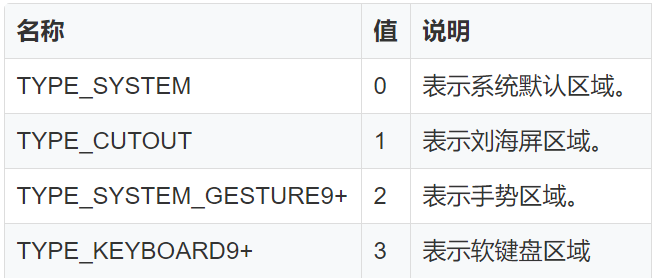
其中回调参数 AvoidArea 是规避区域,可以通过其获取规避区域的具体范围;AvoidAreaType 是规避区域的类型其取值如下,示例中需要规避的状态栏和导航栏属于 TYPE_SYSTEM 类型。
具体代码如下:
page 代码:
//index.ets
@Entry
@Component
structType3{
@Statemessage:string='HelloWorld'
@StorageLink("topHeight")topHeight:number=0
@StorageLink("bottomHeight")bottomHeight:number=0

build(){
Column(){
//在界面顶部放置一个Row组件,用于占位
Row(){

}
.width("100%")
//设置Row组件的高度为状态栏的高度,可避免界面内容与状态栏内容重叠
.height(px2vp(this.topHeight))
Row(){
Text(this.message)
.fontSize(50)
.fontWeight(FontWeight.Bold)
.position({x:0,y:0})
}
.width("100%")
.flexGrow(1)
//在界面底部放置一个Row组件,用于占位
Row(){

}
.width("100%")
//设置Row组件的高度为导航栏的高度,可避免界面内容与导航栏内容重叠
.height(px2vp(this.bottomHeight))
}
.backgroundImage($r("app.media.icon"))
.backgroundImageSize(ImageSize.Cover)
.width("100%")
.height("100%")
}
}
ability 代码:
//MainAbility.ts
importwindowfrom'@ohos.window';

asyncfunctionenterImmersion(windowClass:window.Window){
//获取状态栏和导航栏的高度
windowClass.on("avoidAreaChange",({type,area})=>{
if(type==window.AvoidAreaType.TYPE_SYSTEM){
//将状态栏和导航栏的高度保存在AppStorage中
AppStorage.SetOrCreate("topHeight",area.topRect.height);
AppStorage.SetOrCreate("bottomHeight",area.bottomRect.height);
}
})
//设置窗口布局为沉浸式布局
awaitwindowClass.setWindowLayoutFullScreen(true)
awaitwindowClass.setWindowSystemBarEnable(["status","navigation"])
//设置状态栏和导航栏的背景为透明
awaitwindowClass.setWindowSystemBarProperties({
navigationBarColor:"#00000000",
statusBarColor:"#00000000",
navigationBarContentColor:"#FF0000",
statusBarContentColor:"#FF0000"
})
}

exportdefaultclassMainAbilityextendsAbility{
...
asynconWindowStageCreate(windowStage:window.WindowStage){
letwindowClass:window.Window=awaitwindowStage.getMainWindow()
awaitenterImmersion(windowClass)
windowStage.loadContent('pages/page5')
}
...
}
③隐藏状态栏、导航栏
隐藏状态栏、导航栏可以达到完全沉浸的效果,使用 setWindowSystemBarEnable 接口即可实现。
具体代码如下:
importwindowfrom'@ohos.window';
importcommonfrom'@ohos.app.ability.common';

@Entry
@Component
structType3{
@Statemessage:string='HelloWorld'
context:common.UIAbilityContext=getContext(this)ascommon.UIAbilityContext
asyncsetSystemBar(){
letwindowClass=awaitwindow.getLastWindow(context)
//设置导航栏,状态栏不可见
awaitwindowClass.setWindowSystemBarEnable([])
}

aboutToAppear(){
this.setSystemBar()
}

build(){
Row(){
Column(){
Text(this.message)
.fontSize(50)
.fontWeight(FontWeight.Bold)
}
.width('100%')
}
.backgroundColor("#ffee33")
.height('100%')
}
}
审核编辑:汤梓红




 关注微信
关注微信